Setup · First launch
The Setup Wizard opens
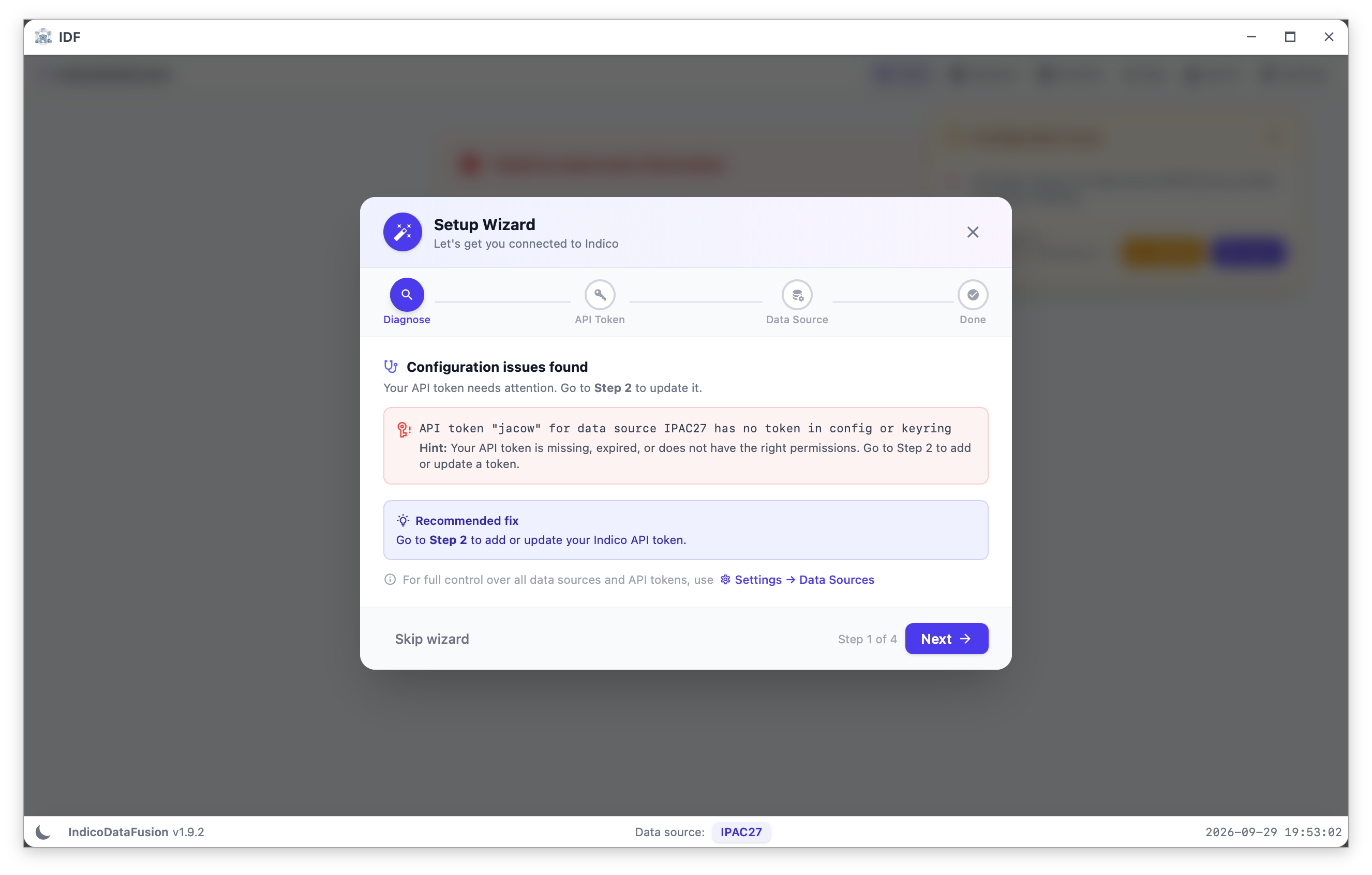
1 · Diagnose: the wizard lists what is missing and how to fix it.
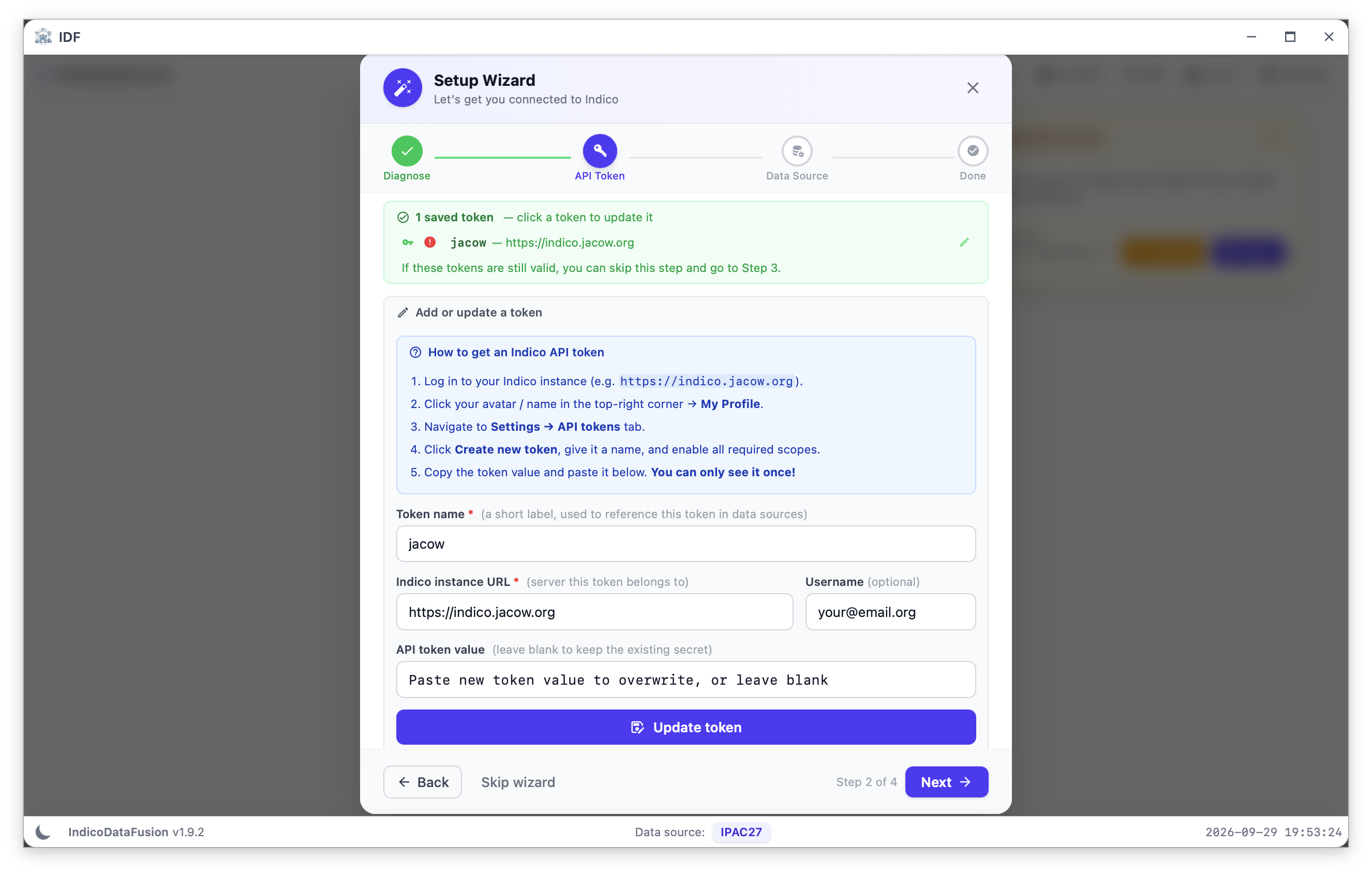
2 · API Token: built-in steps for getting an Indico token.
IDF · Registrations & Cvent · Click a screenshot to enlarge it
4
Setup · Indico token
Create and save the Indico API token
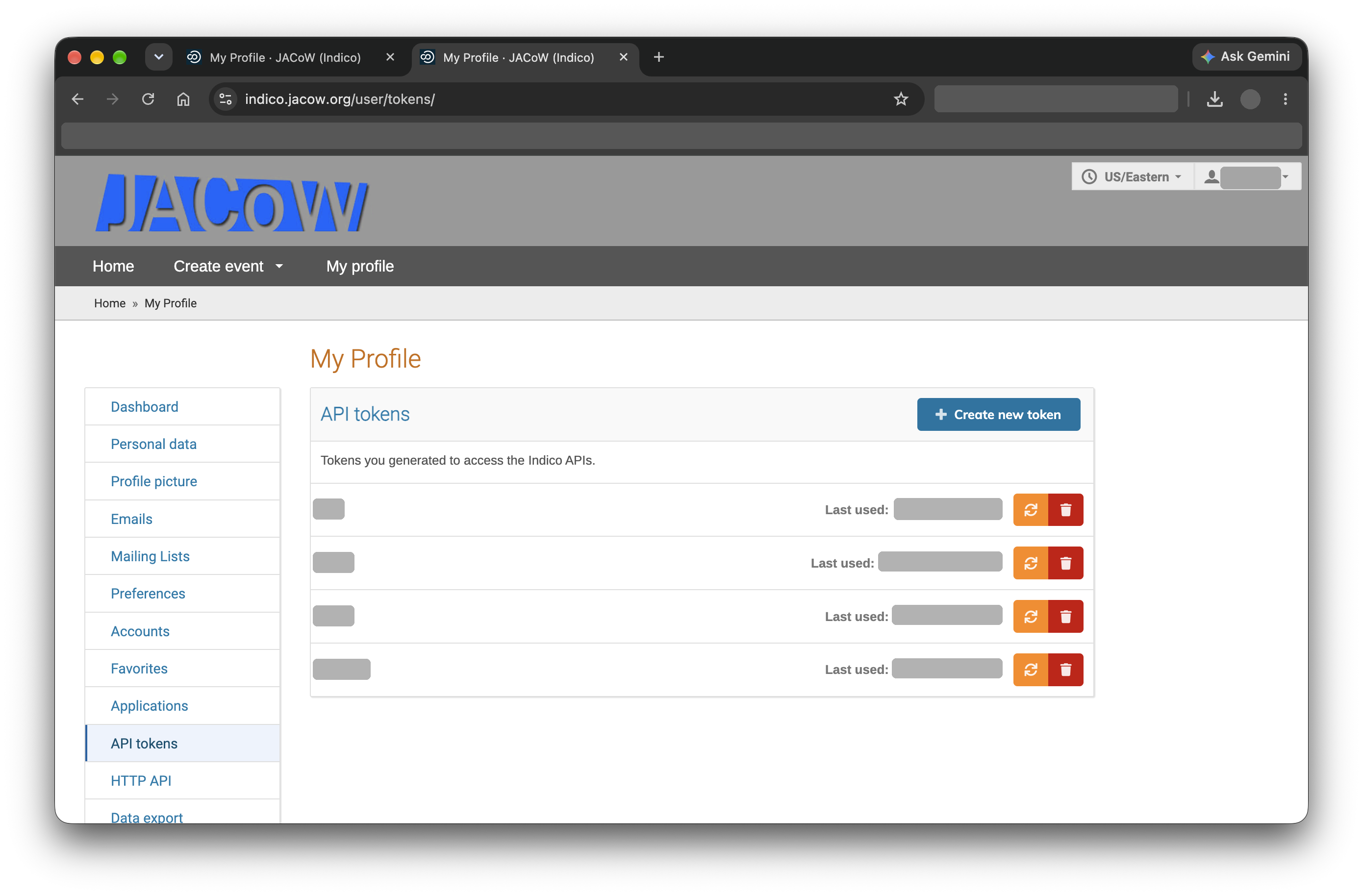
In Indico: My Profile → API tokens → Create new token.
Copy the token string right away: Indico shows it only once, and refreshing the page clears it.
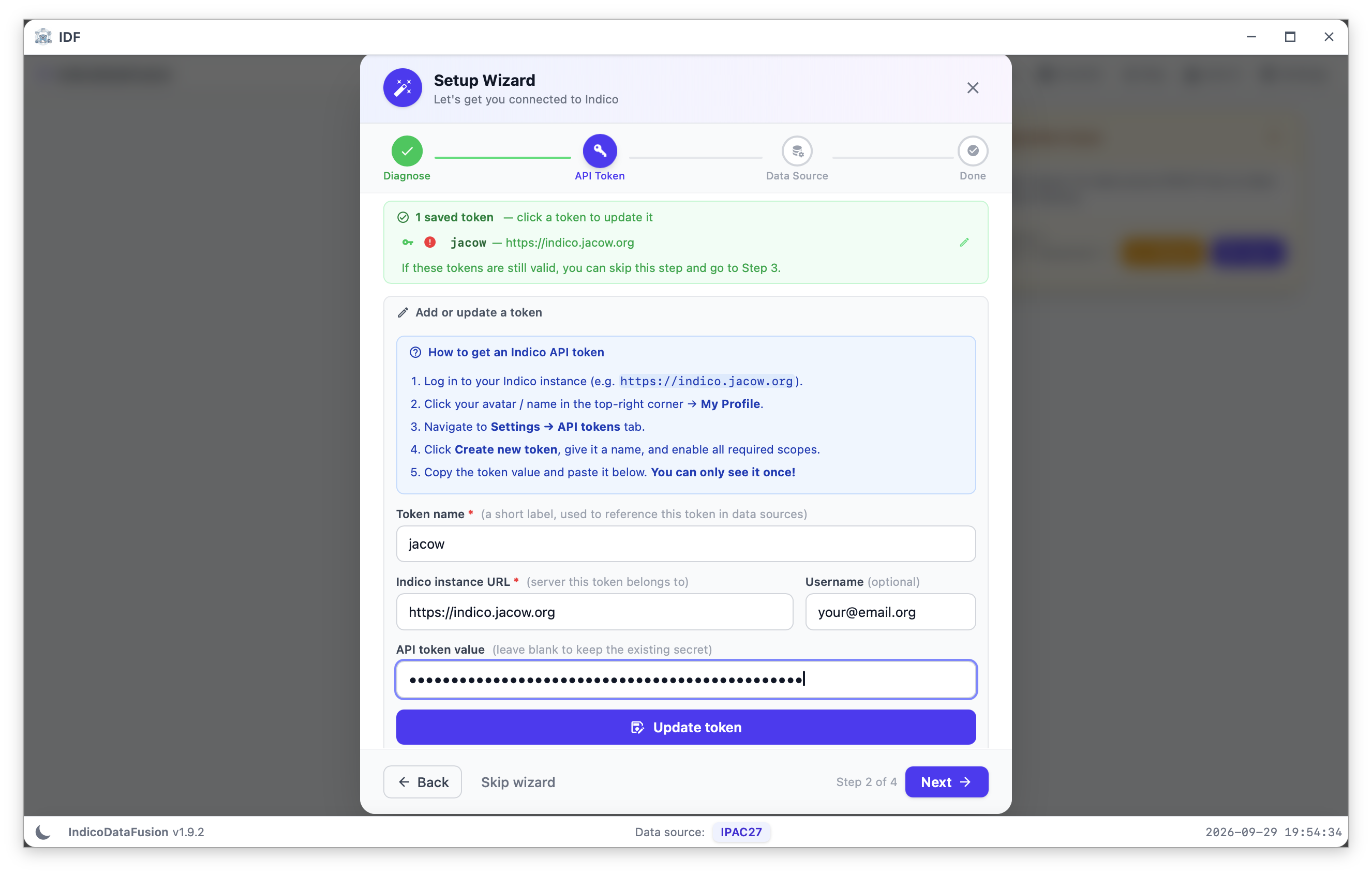
Back in IDF: paste the token value.
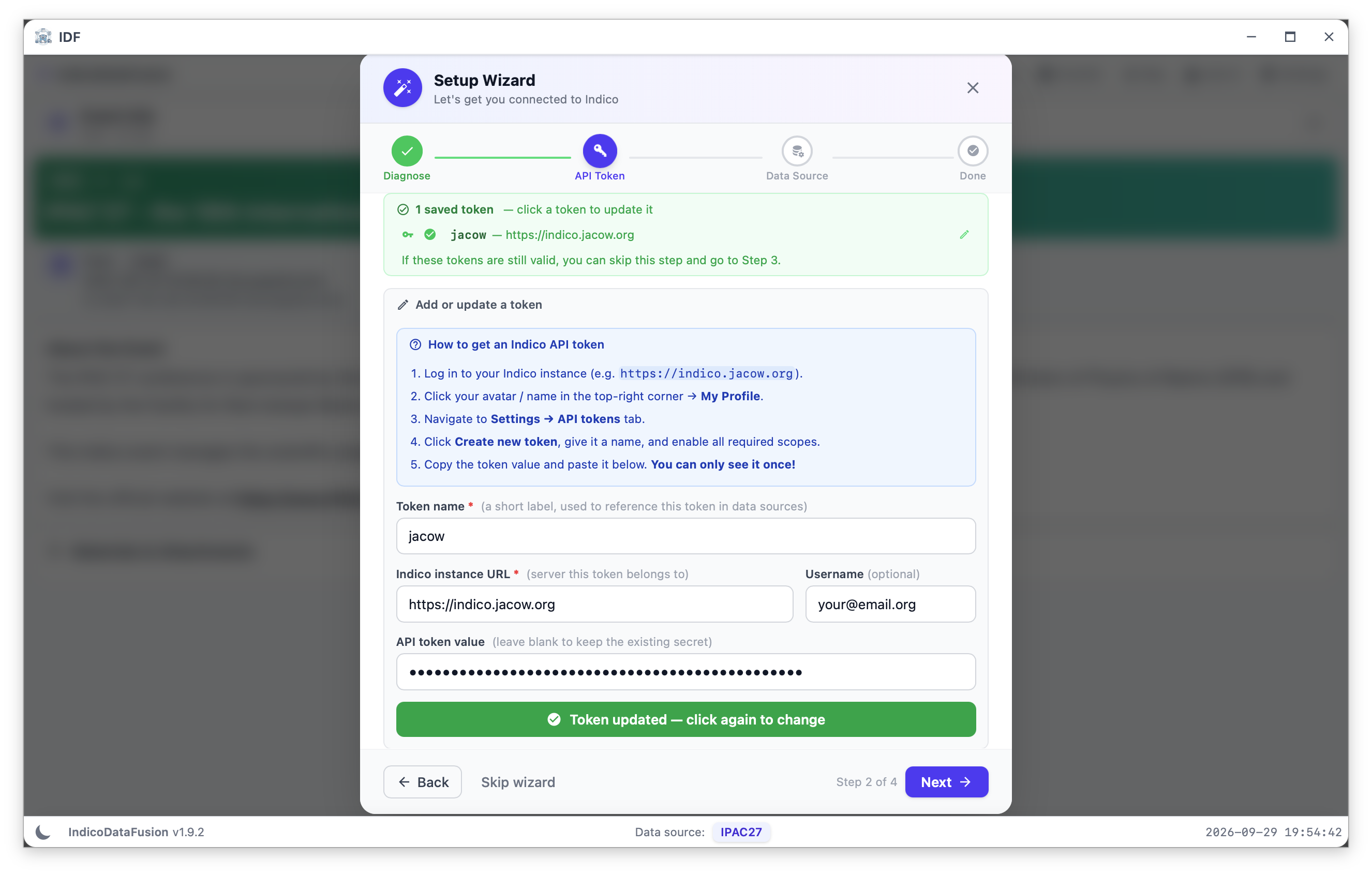
Update token saves the secret in the OS keyring.
IDF · Registrations & Cvent · Click a screenshot to enlarge it
5
Setup · Indico token
Tick every scope on the Indico token
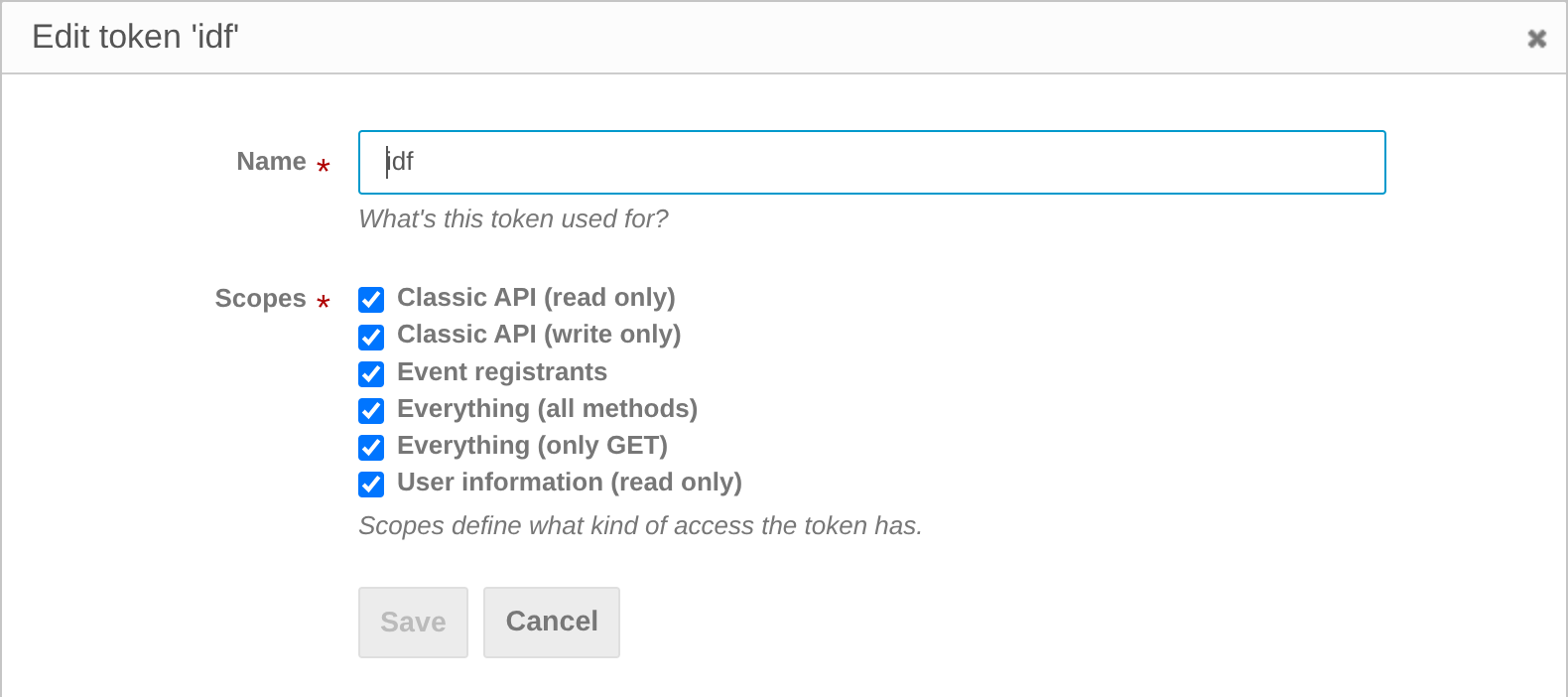
When creating or editing the token, check all scopes under Scopes.
With a scope missing, IDF shows no registration data, even if your Indico role on the event is correct.
To fix an existing token: My Profile → API tokens, click the token, tick every scope, then Save.
IDF · Registrations & Cvent · Click a screenshot to enlarge it
6
Setup · Data source
Point IDF at your event
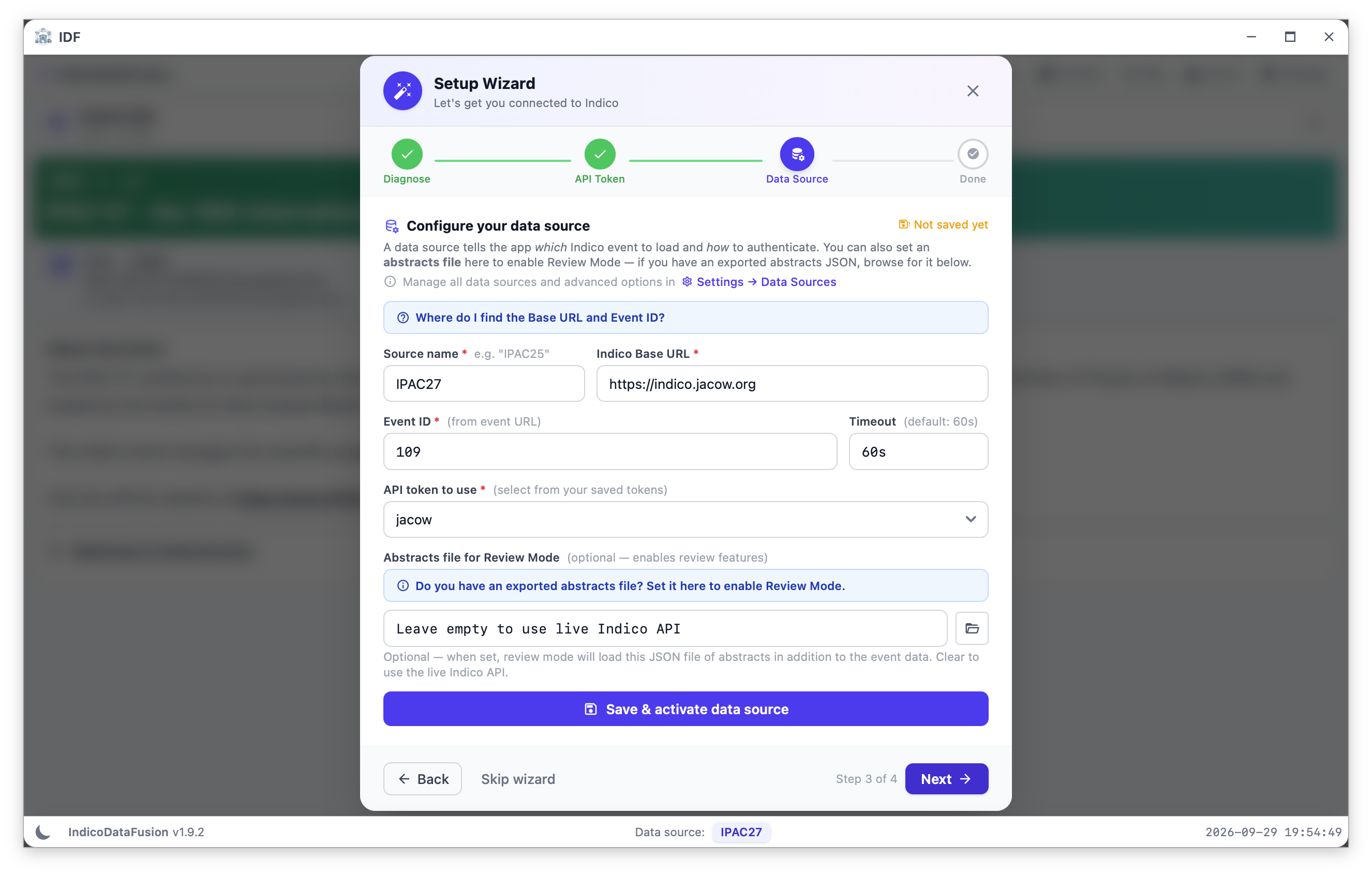
3 · Data Source: base URL, event ID and the token to use.
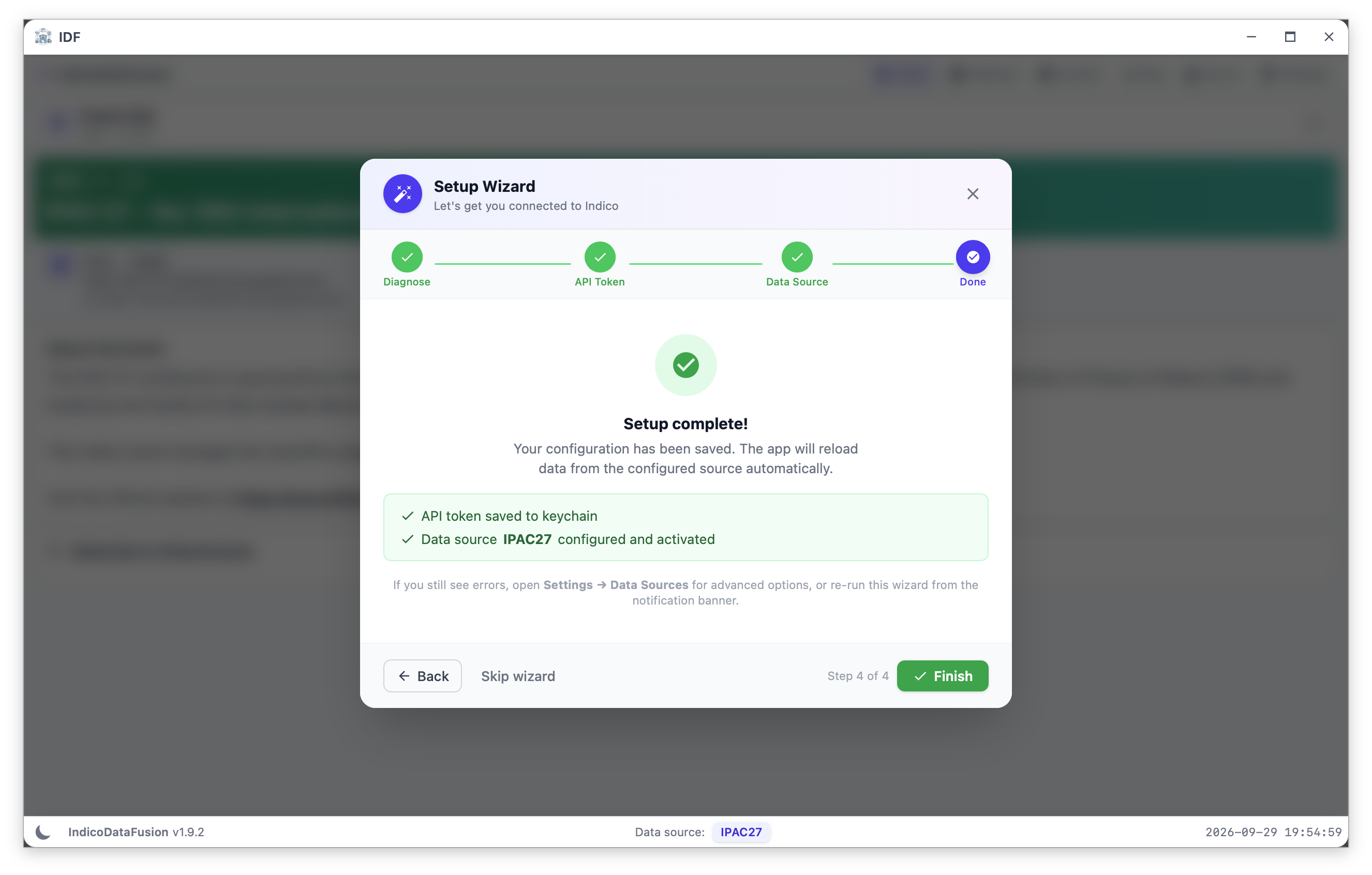
4 · Done: the configuration is saved and the data reloads.
IDF · Registrations & Cvent · Click a screenshot to enlarge it
7
Setup · Done
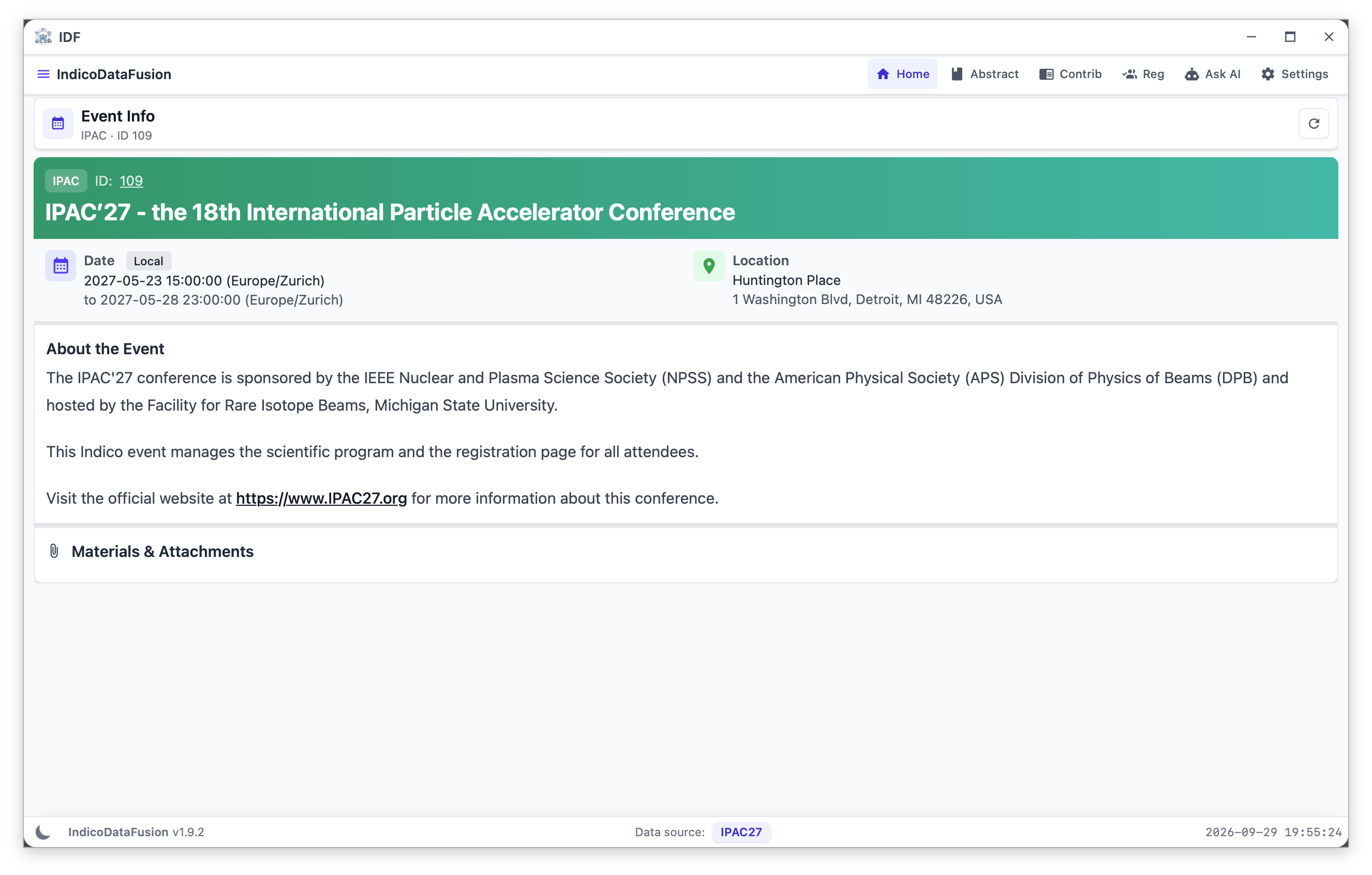
IDF is ready
Event Info opens for the configured event.
Reg in the top bar opens the Registrations page.
IDF · Registrations & Cvent · Click a screenshot to enlarge it
8
Registrations
Browse, open, mark as paid
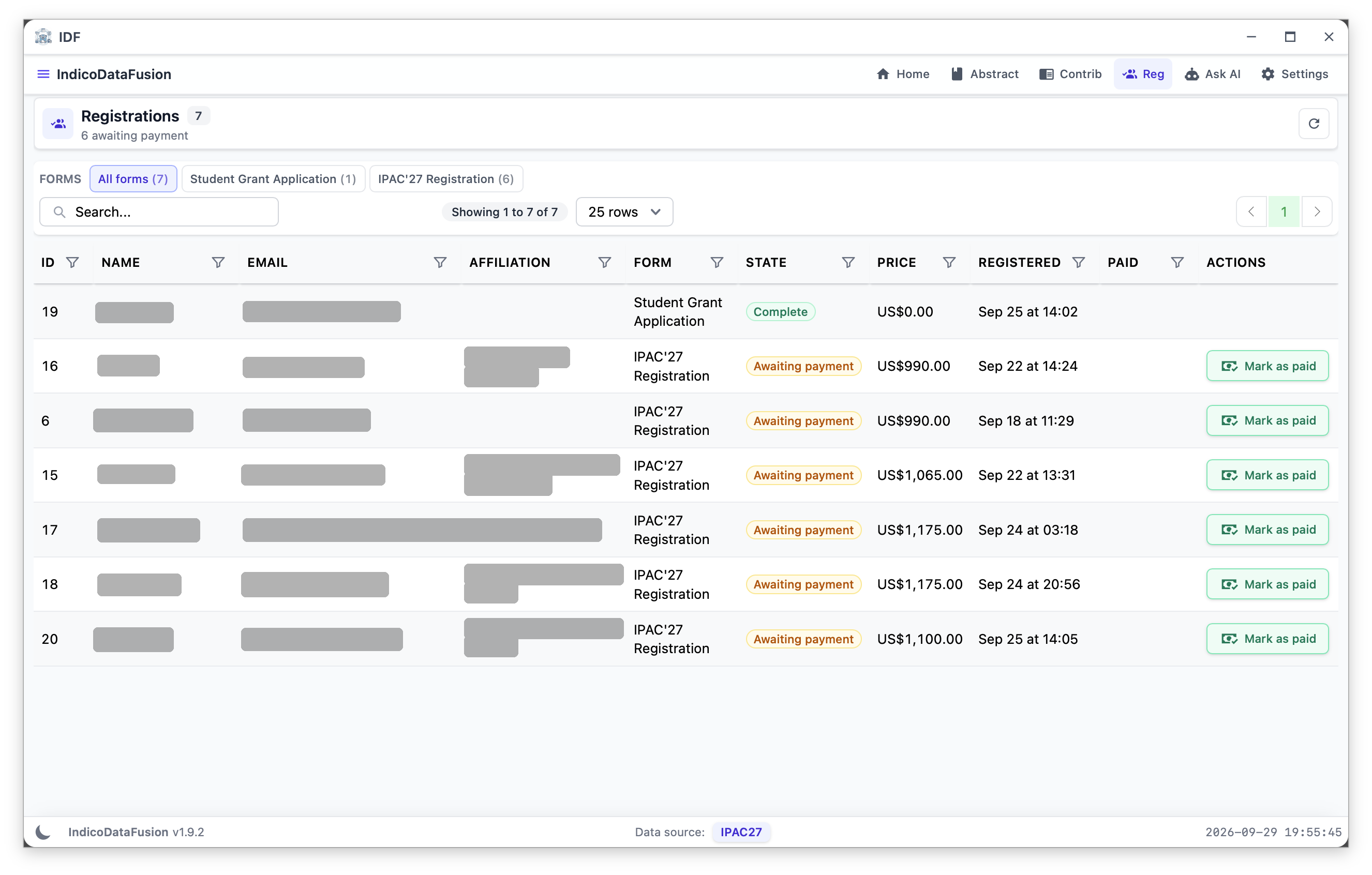
Reg: every form, with state, price and Mark as paid.
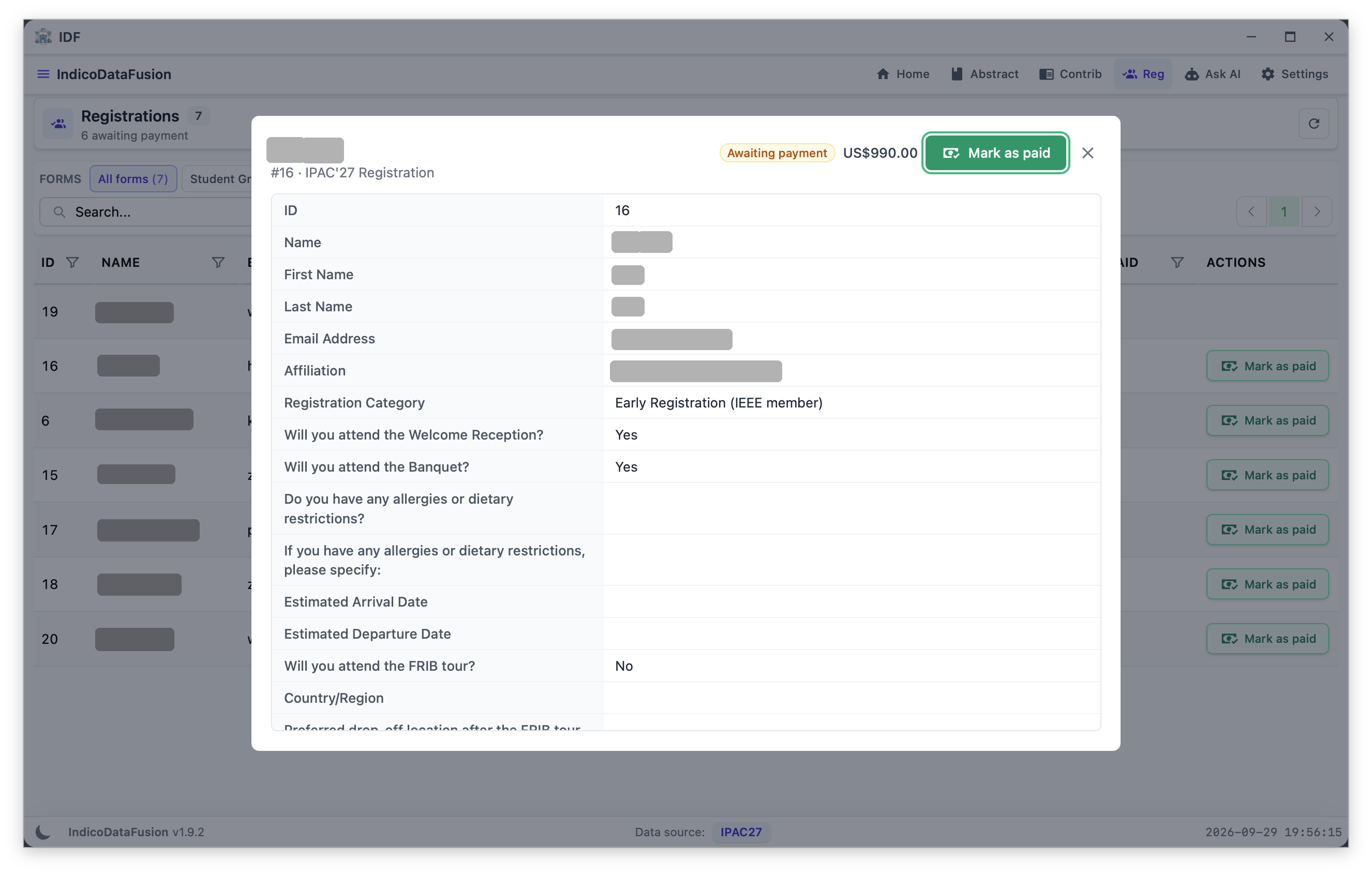
Click a name to see the full registration.
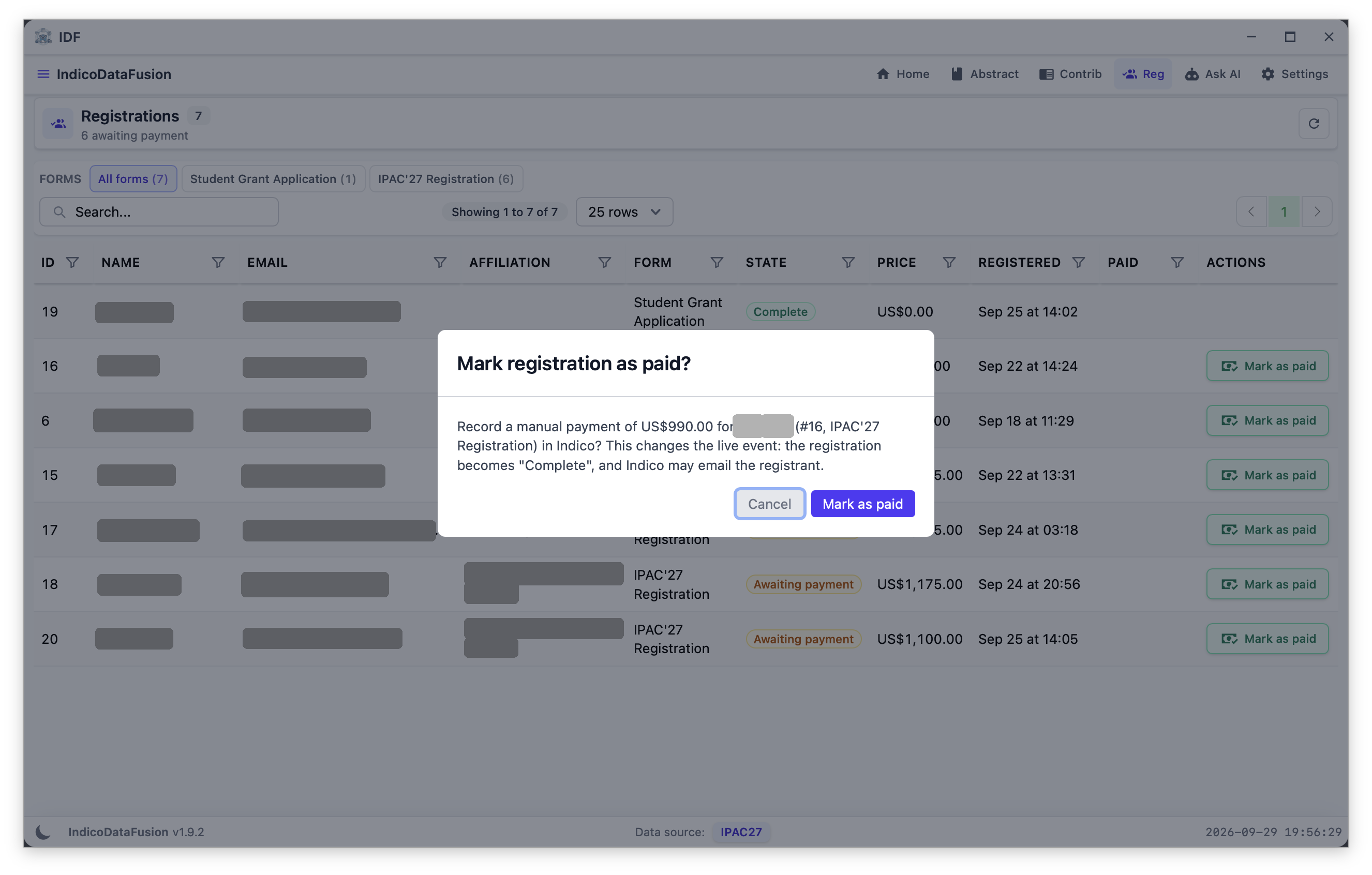
Mark as paid always asks for confirmation.
IDF · Registrations & Cvent · Click a screenshot to enlarge it
9
Connect Cvent · Data source
Open the data source settings
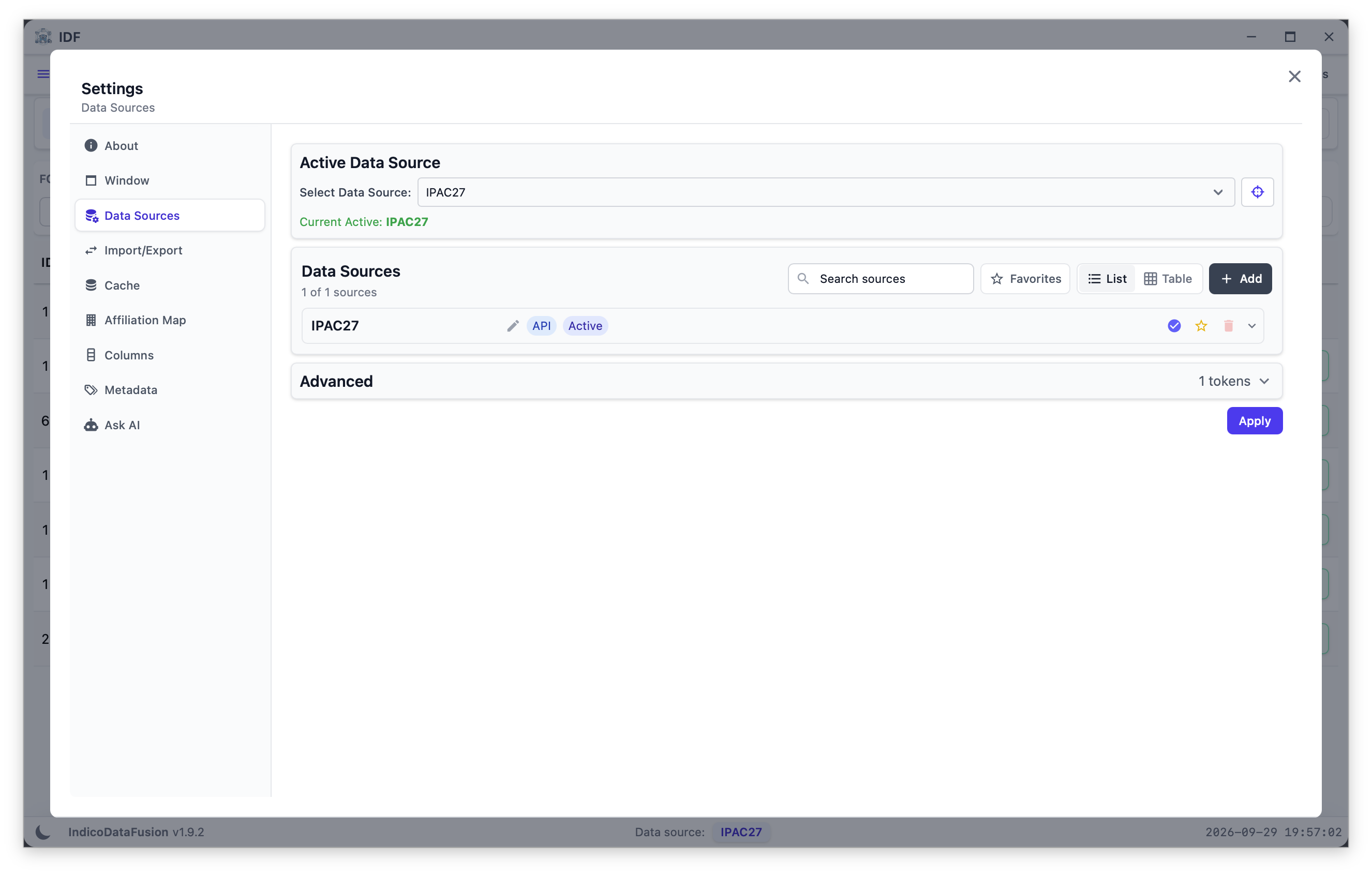
Settings → Data Sources: expand the Indico data source.
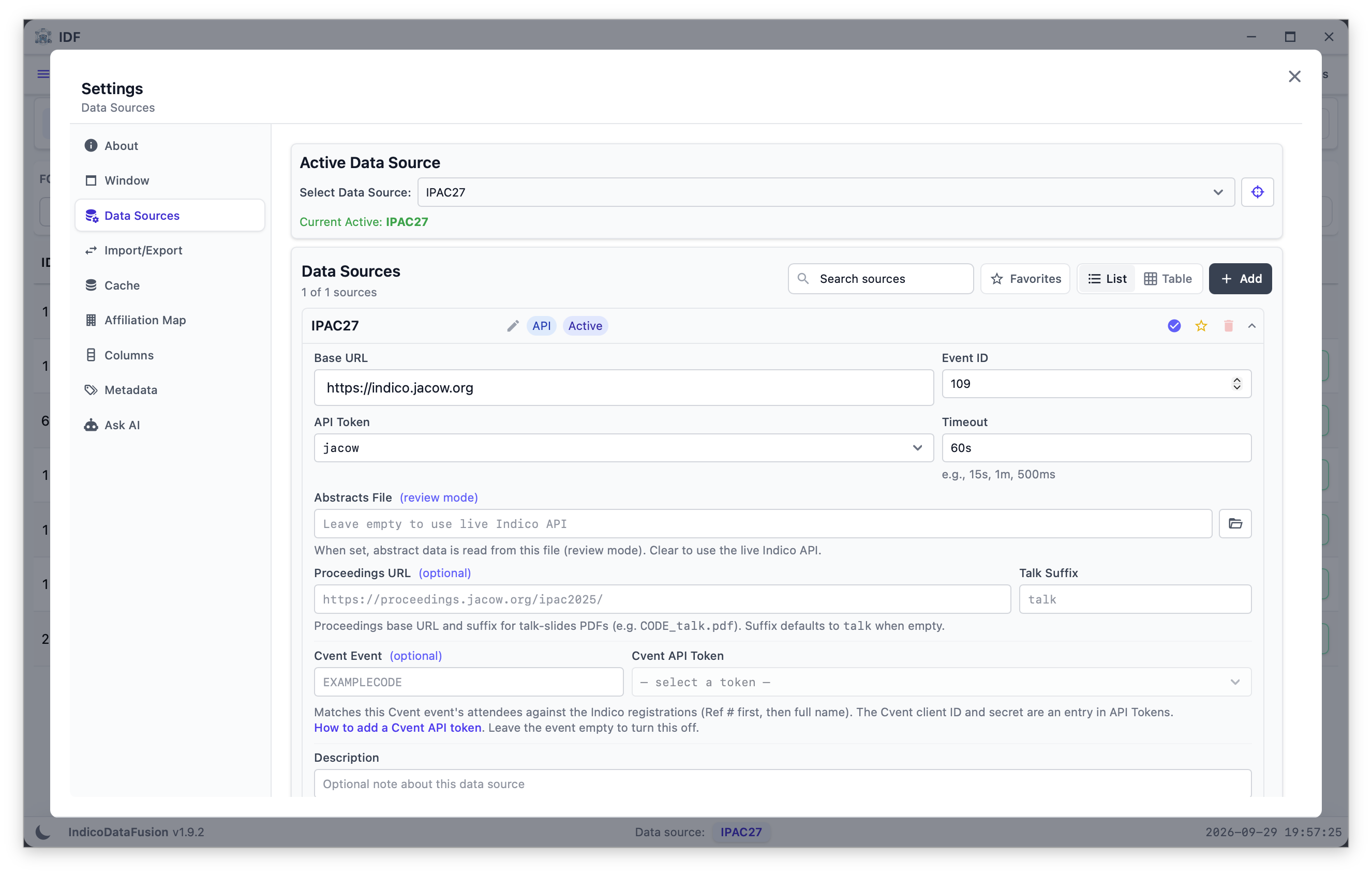
The Cvent Event and Cvent API Token fields.
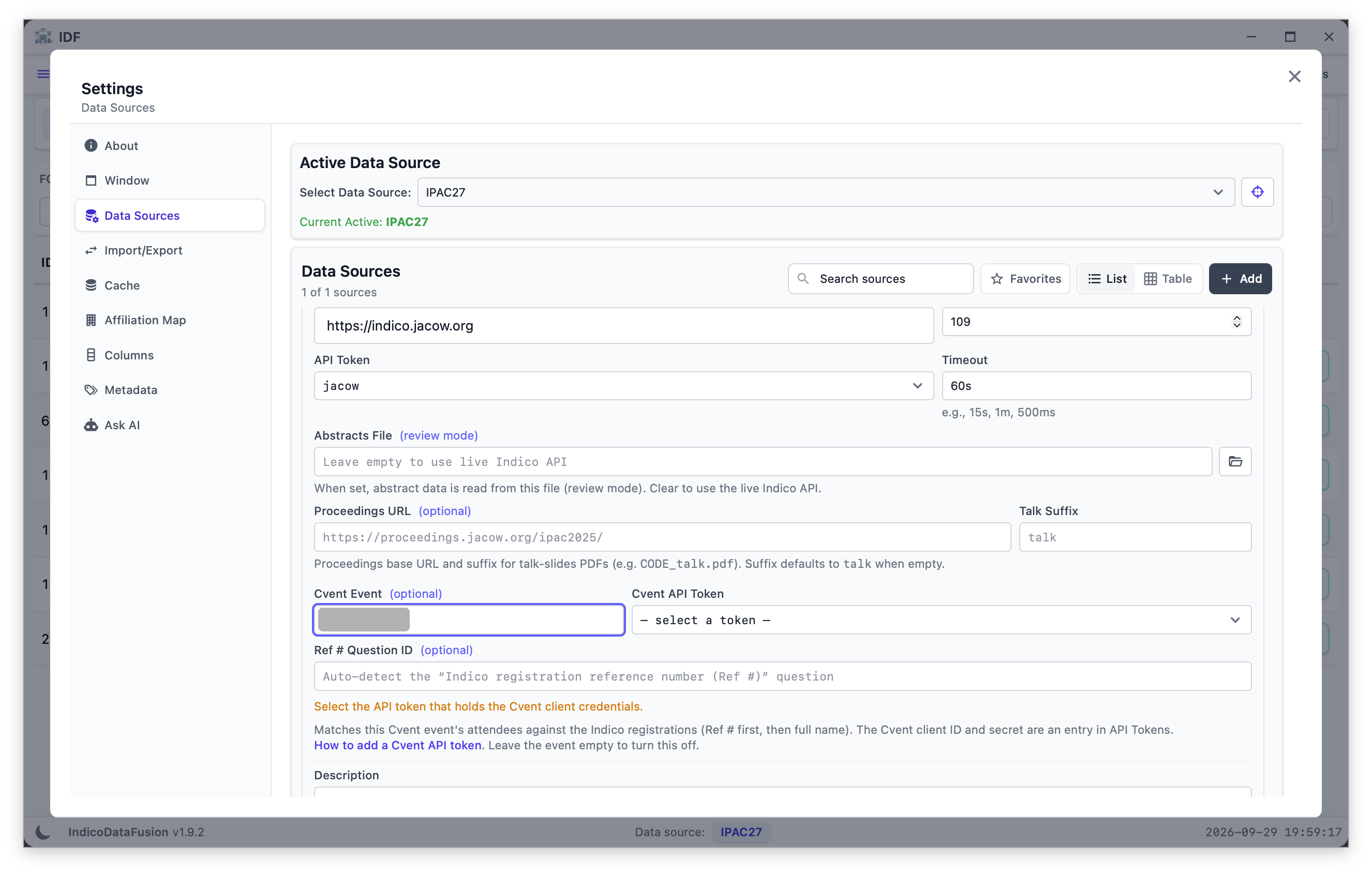
Enter the Cvent event code. Ref # Question ID can stay blank.
IDF · Registrations & Cvent · Click a screenshot to enlarge it
11
Connect Cvent · API token
Add the Cvent token and link it
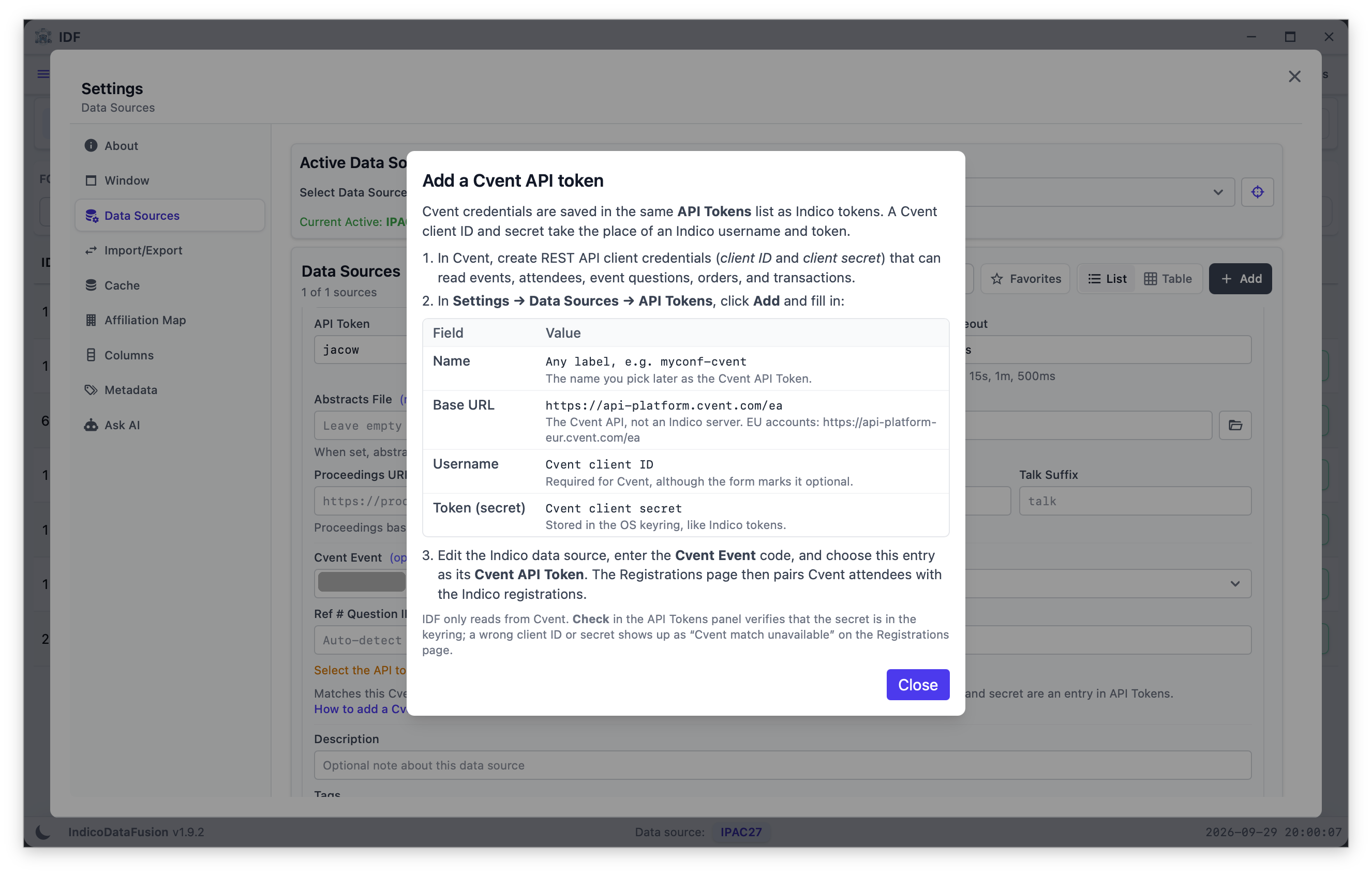
ⓘ Cvent shows these steps in the app.
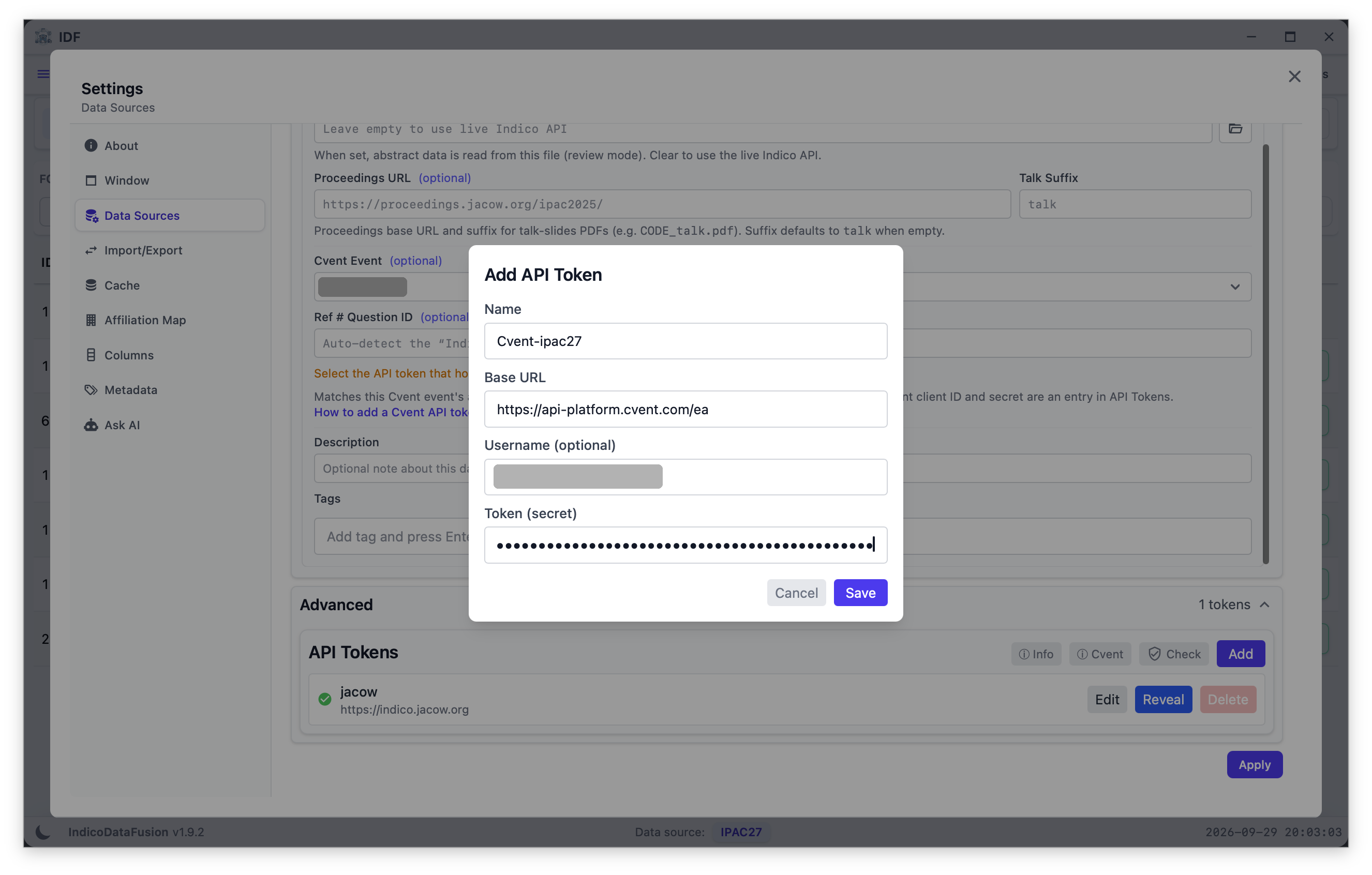
Advanced → API Tokens → Add: Cvent base URL, client ID, client secret.
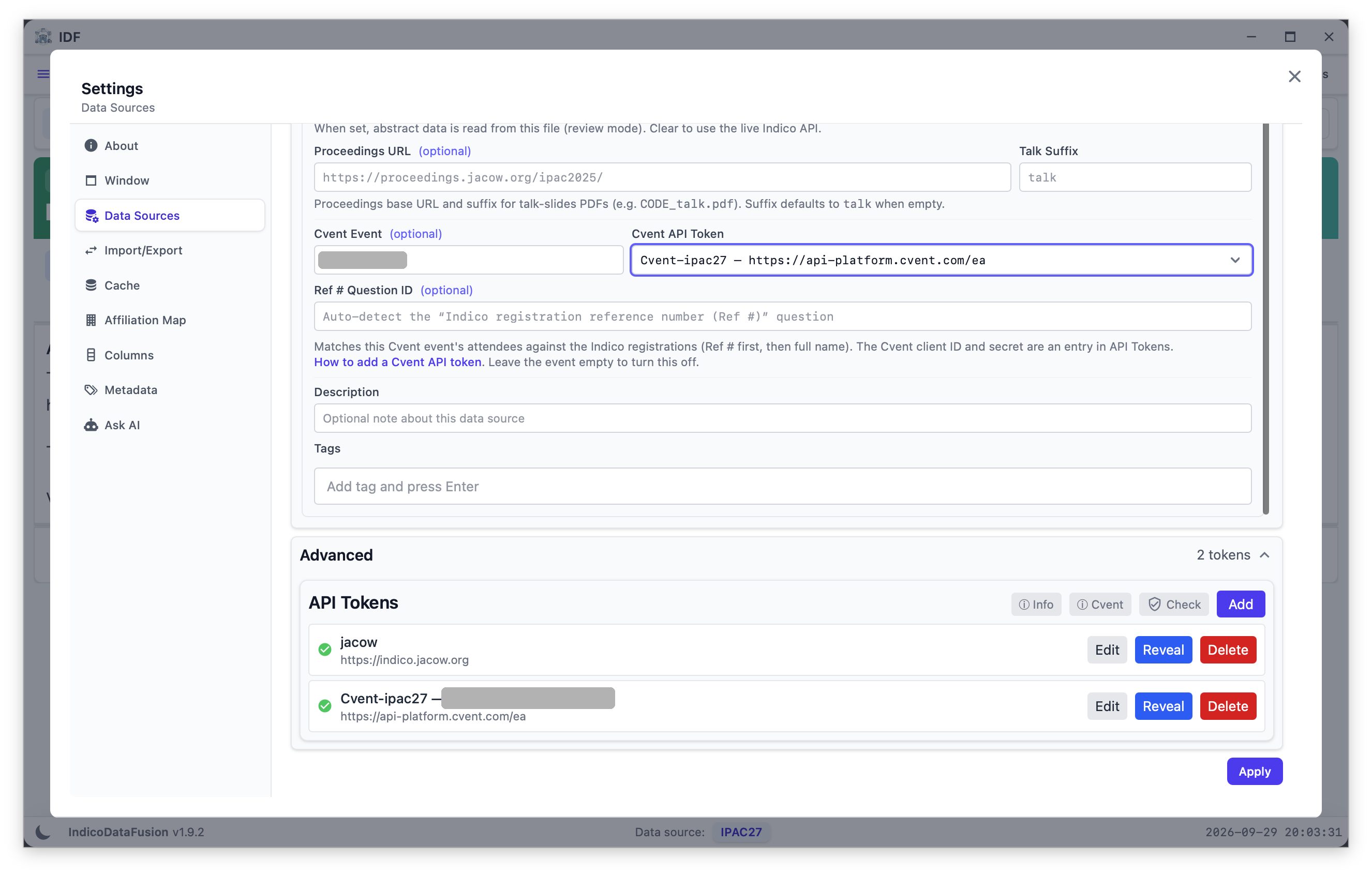
Choose the new token as Cvent API Token, then Apply.
IDF · Registrations & Cvent · Click a screenshot to enlarge it
12
Reading the page · Cvent
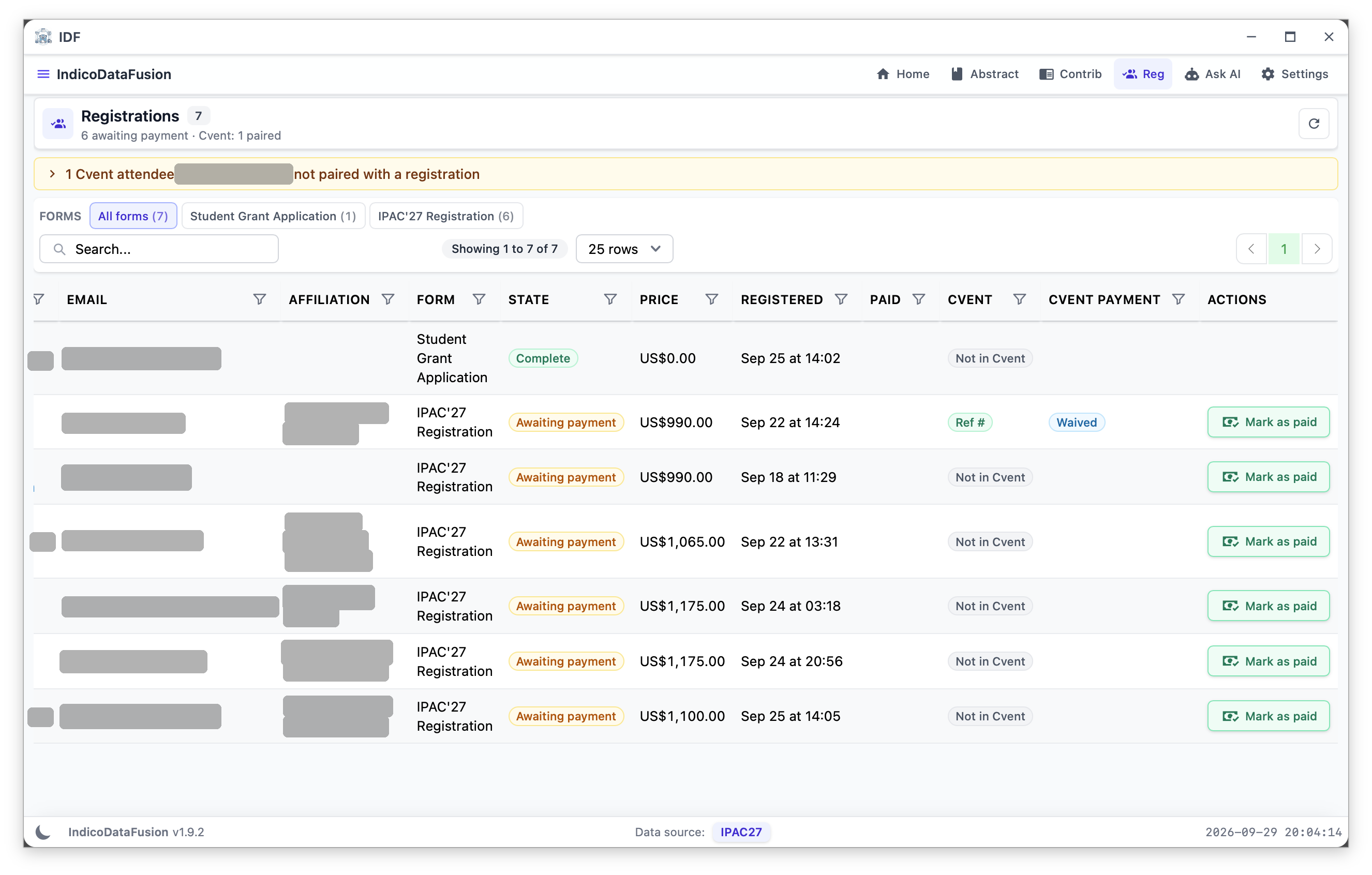
The Cvent columns
Cvent: how the registration was paired, here Ref #, or Not in Cvent.
Cvent Payment: the Cvent state, here Waived.
The banner counts Cvent attendees with no registration.
IDF · Registrations & Cvent · Click a screenshot to enlarge it
14
Reading the page · Unpaired
Cvent attendees without a registration
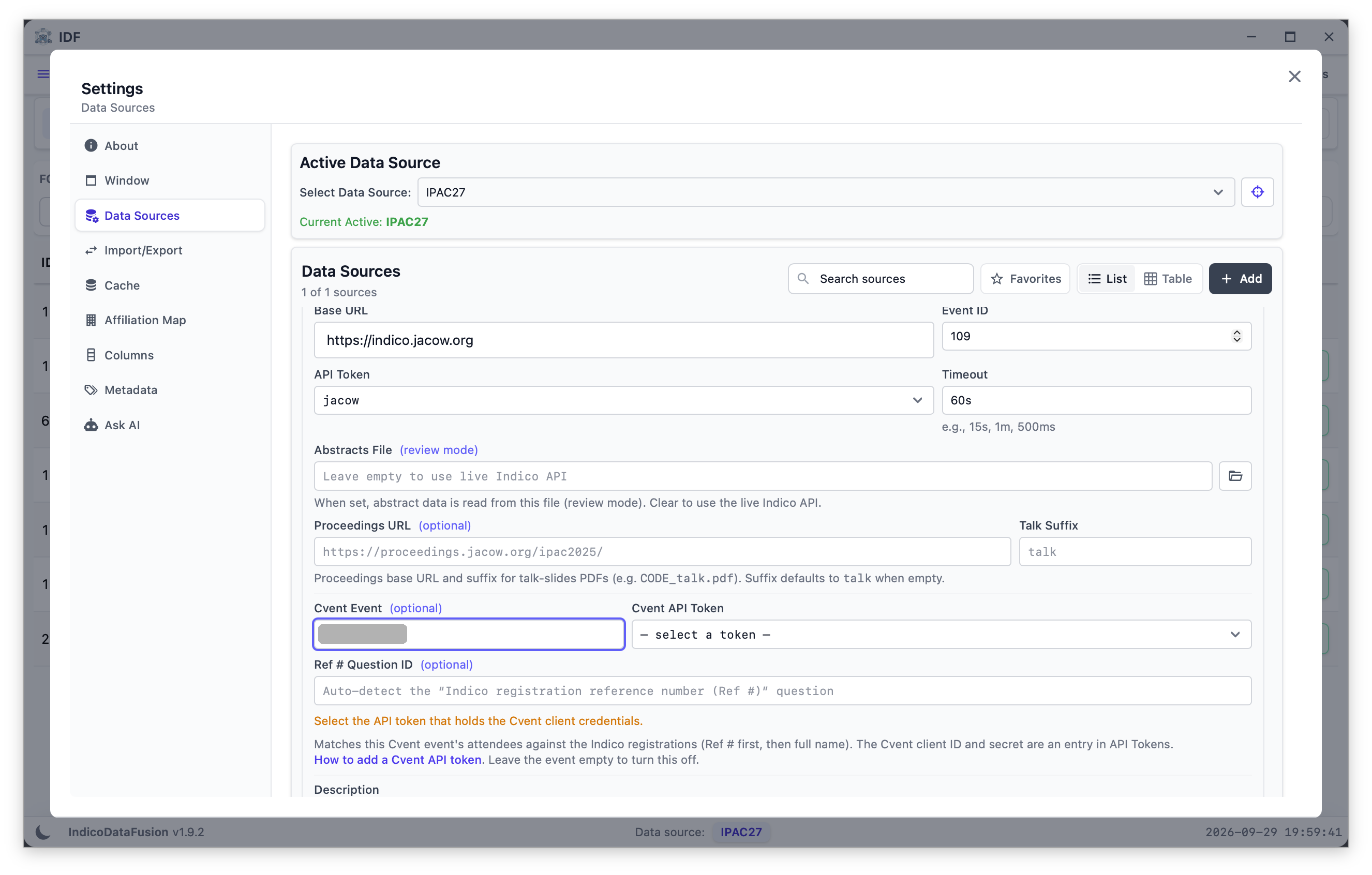
A different Cvent event code is entered…
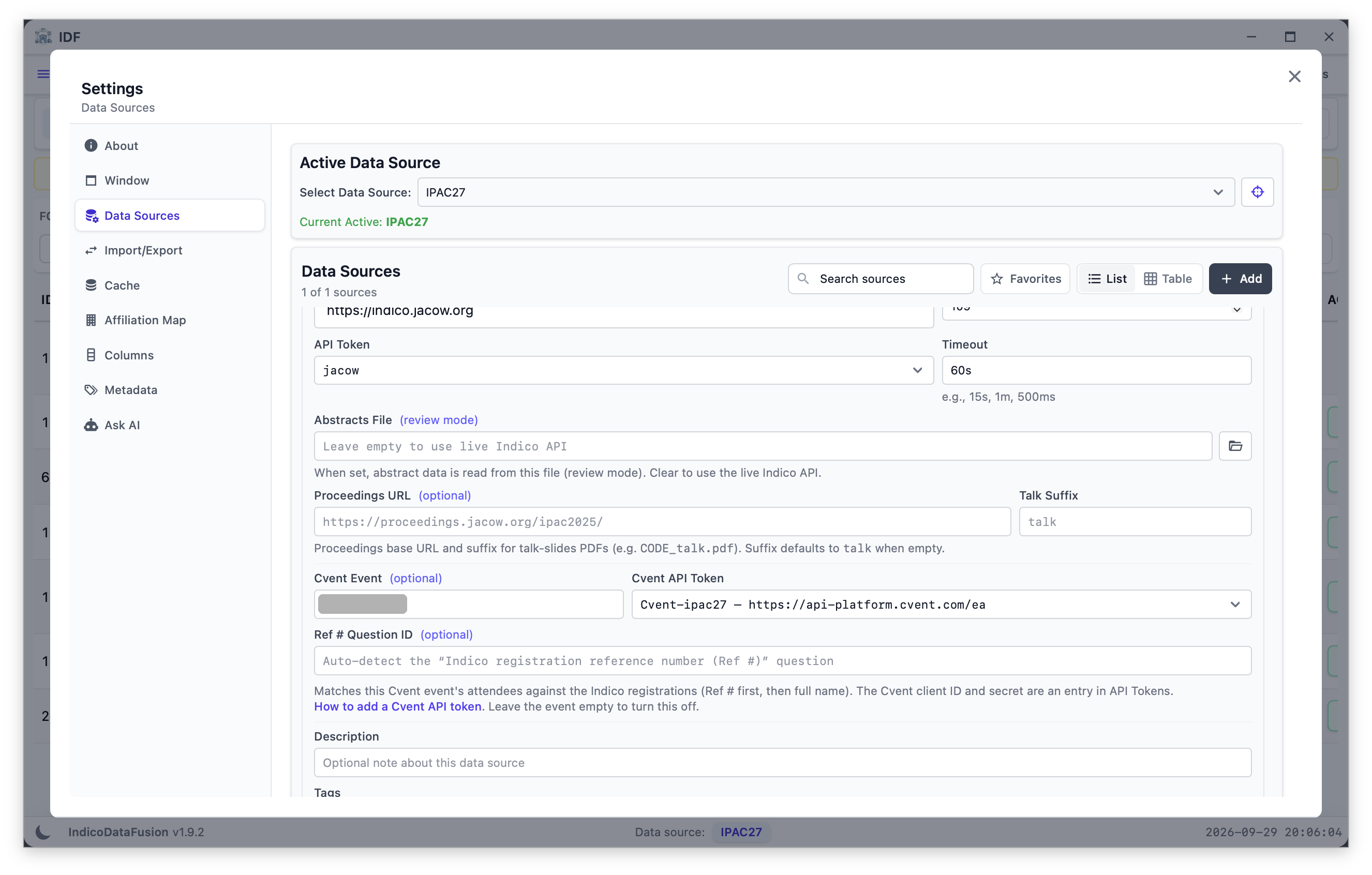
…and saved with the same Cvent token.
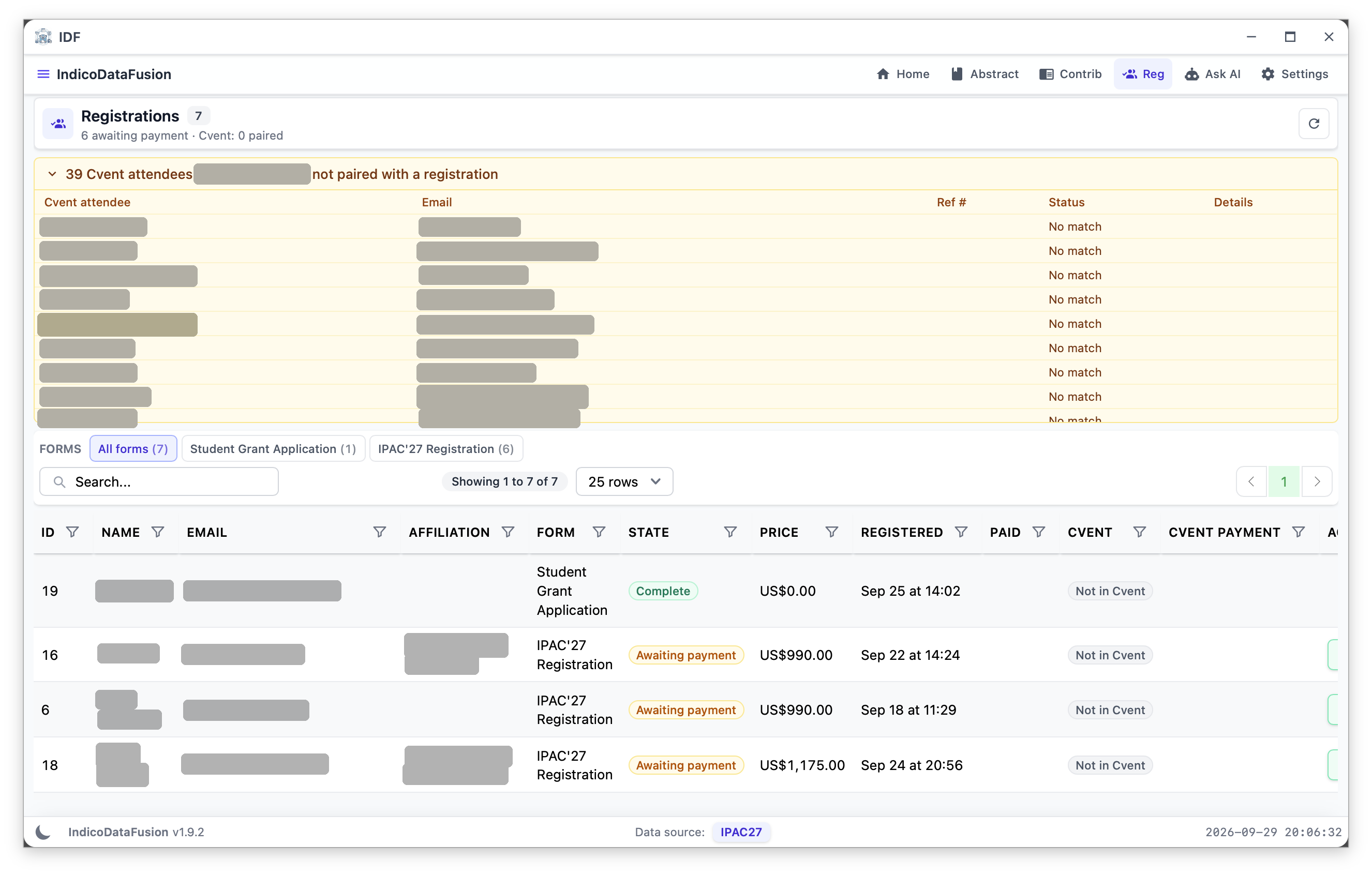
Expand the banner to list each unpaired attendee.
IDF · Registrations & Cvent · Click a screenshot to enlarge it
15
The sync routine · Filter shortcut
One click lists the rows to fix
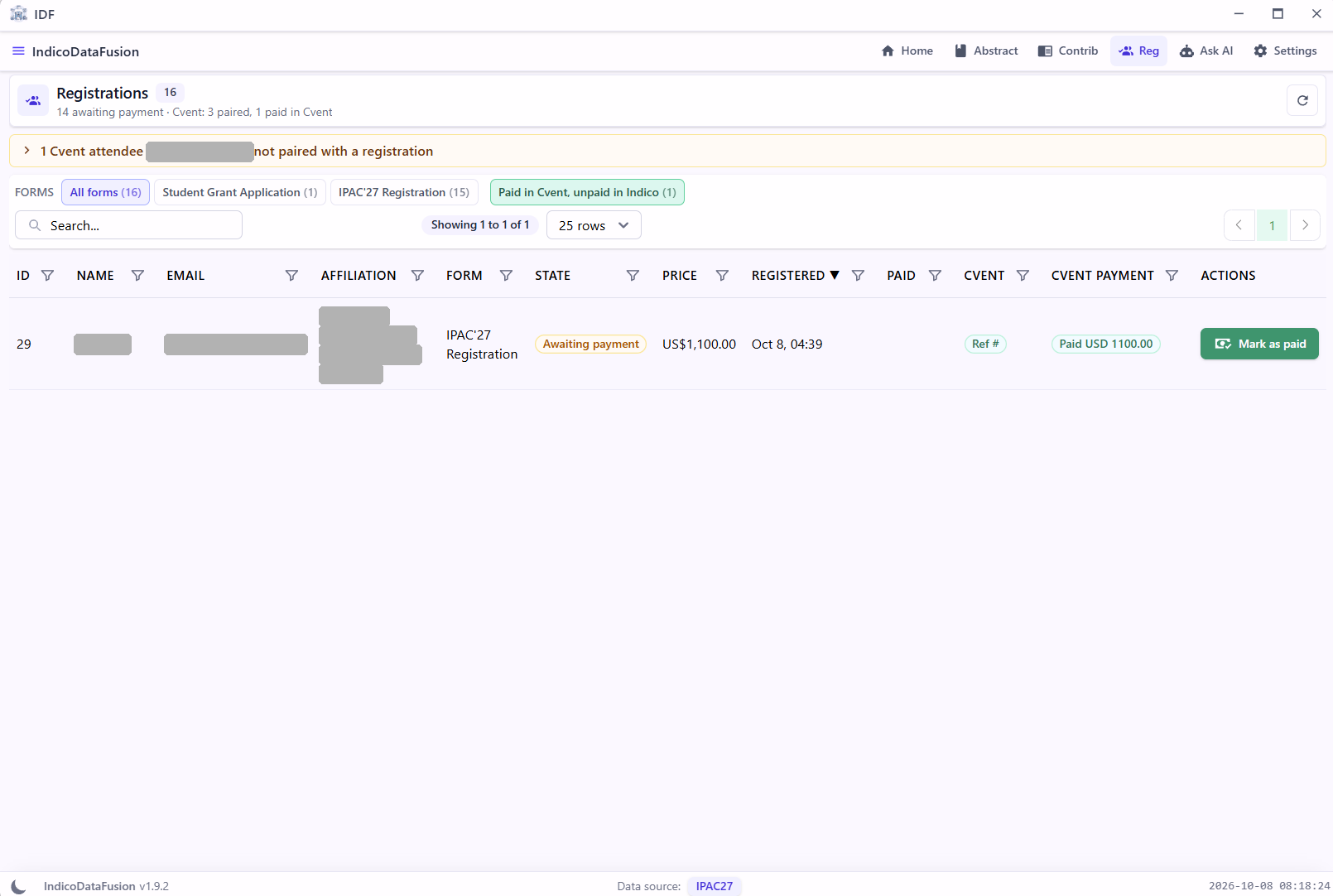
The Paid in Cvent, unpaid in Indico button appears next to the forms when rows match, with the count in brackets.
Click it to show only registrations Cvent reports as paid while Indico still shows Awaiting payment.
Work through each row with steps 3 to 5. A row marked as paid drops out of the list.
IDF · Registrations & Cvent · Click a screenshot to enlarge it
18
The sync routine · Mark as paid
Confirm, then check the row
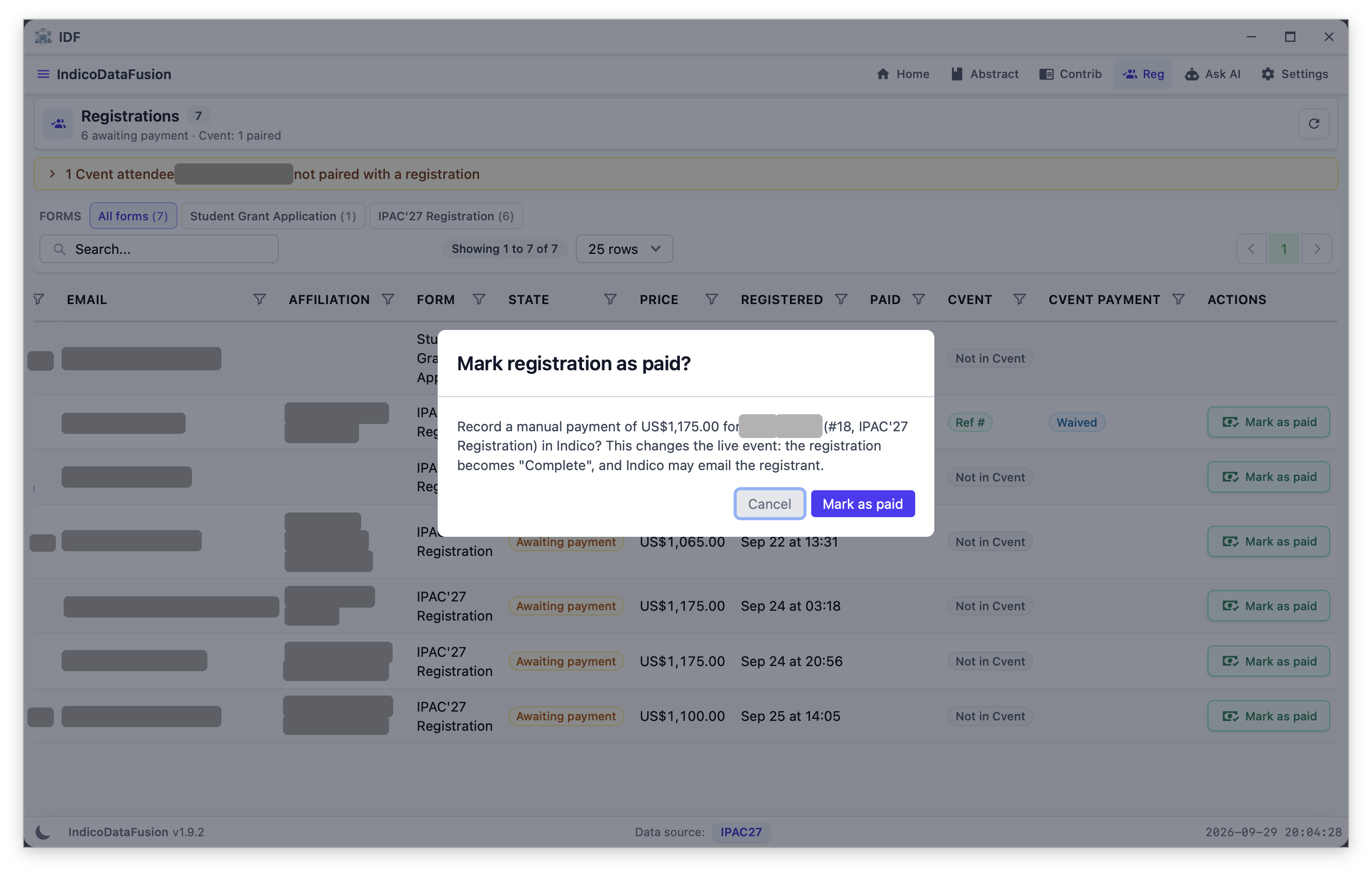
Check the amount and the registrant, then confirm.
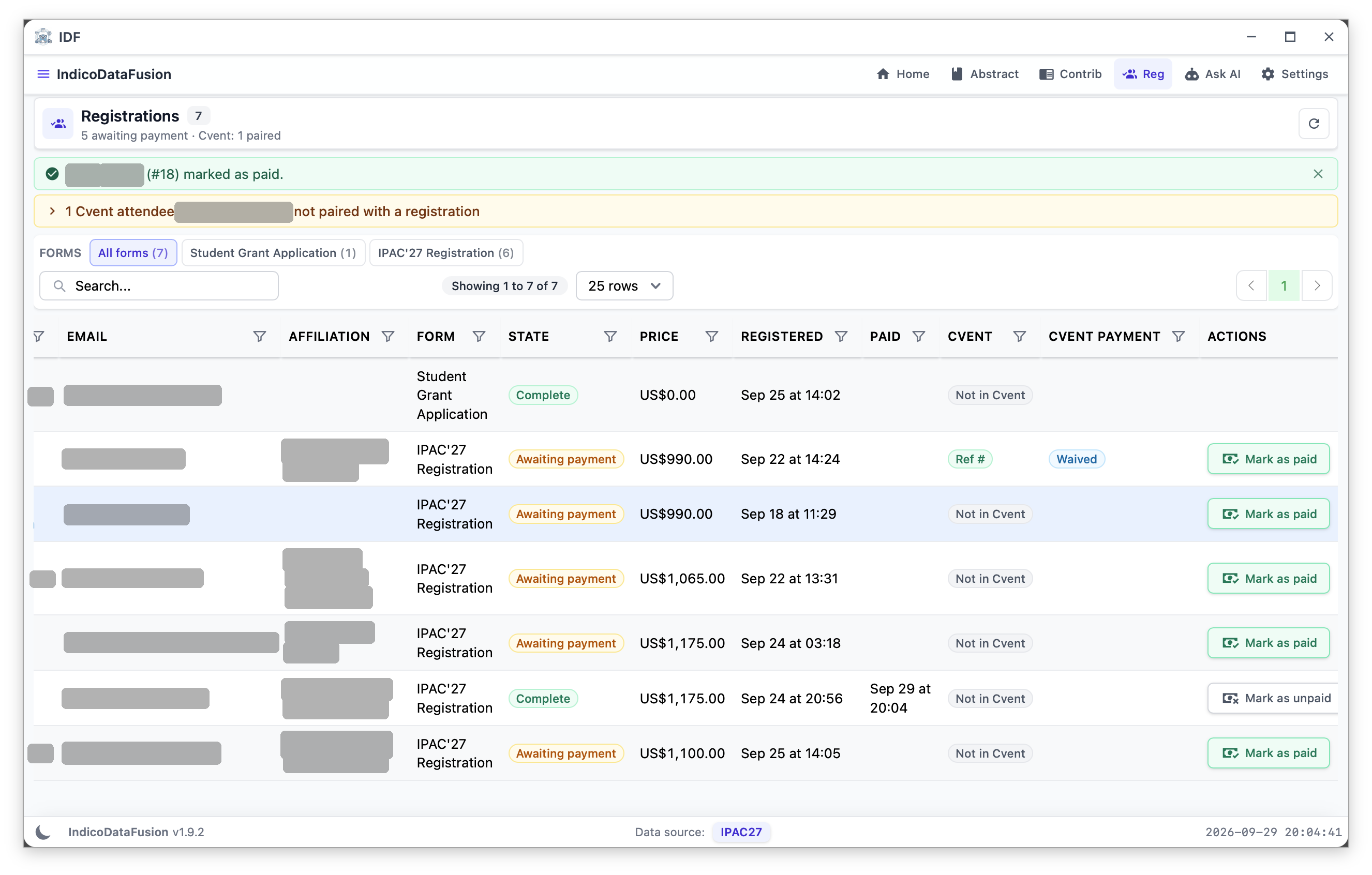
The row shows Complete with the paid date; the button becomes Mark as unpaid.
IDF · Registrations & Cvent · Click a screenshot to enlarge it
19
Undo
Mark as unpaid changes the state, not the money
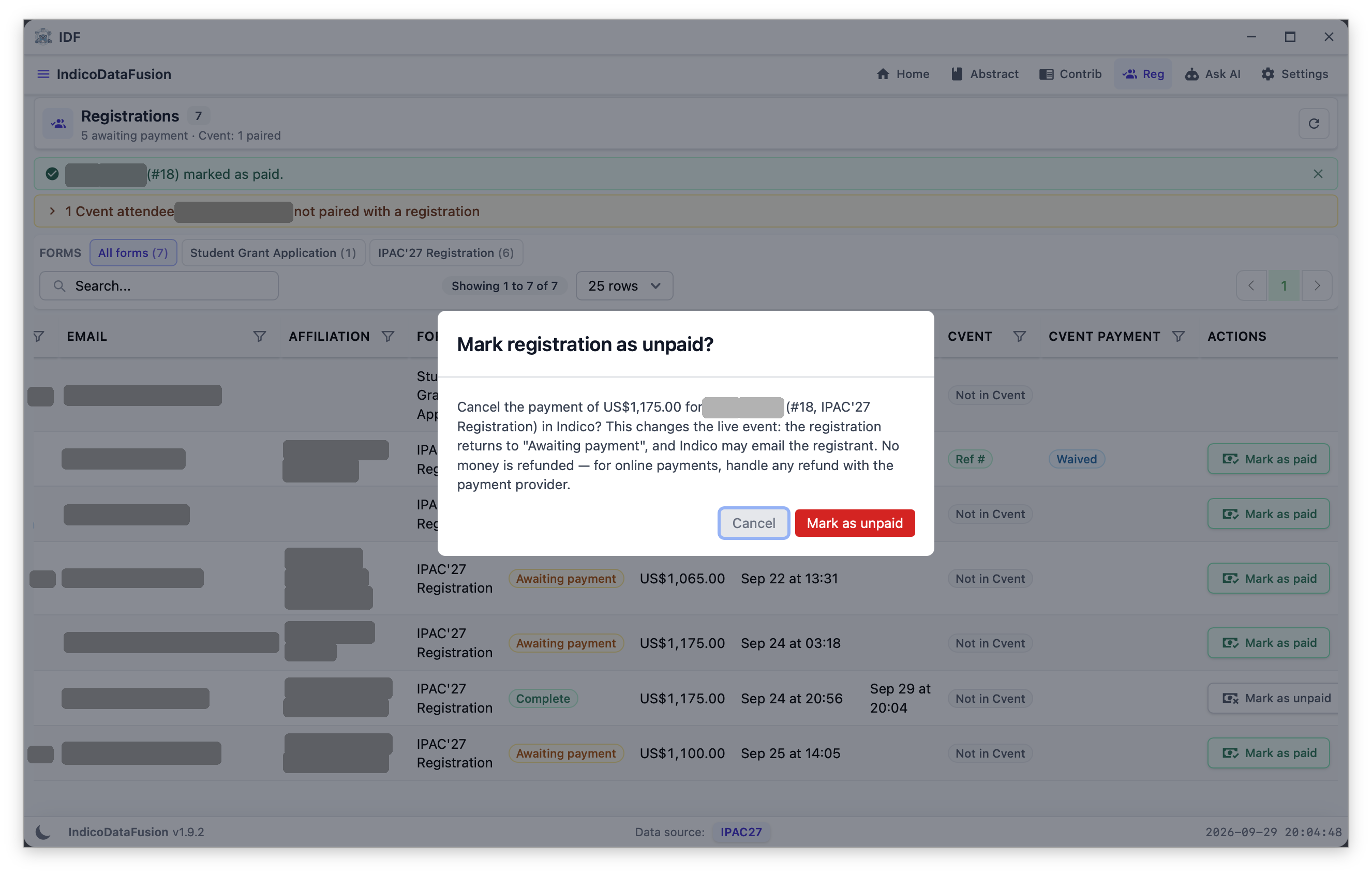
The confirmation warns that no money is refunded.
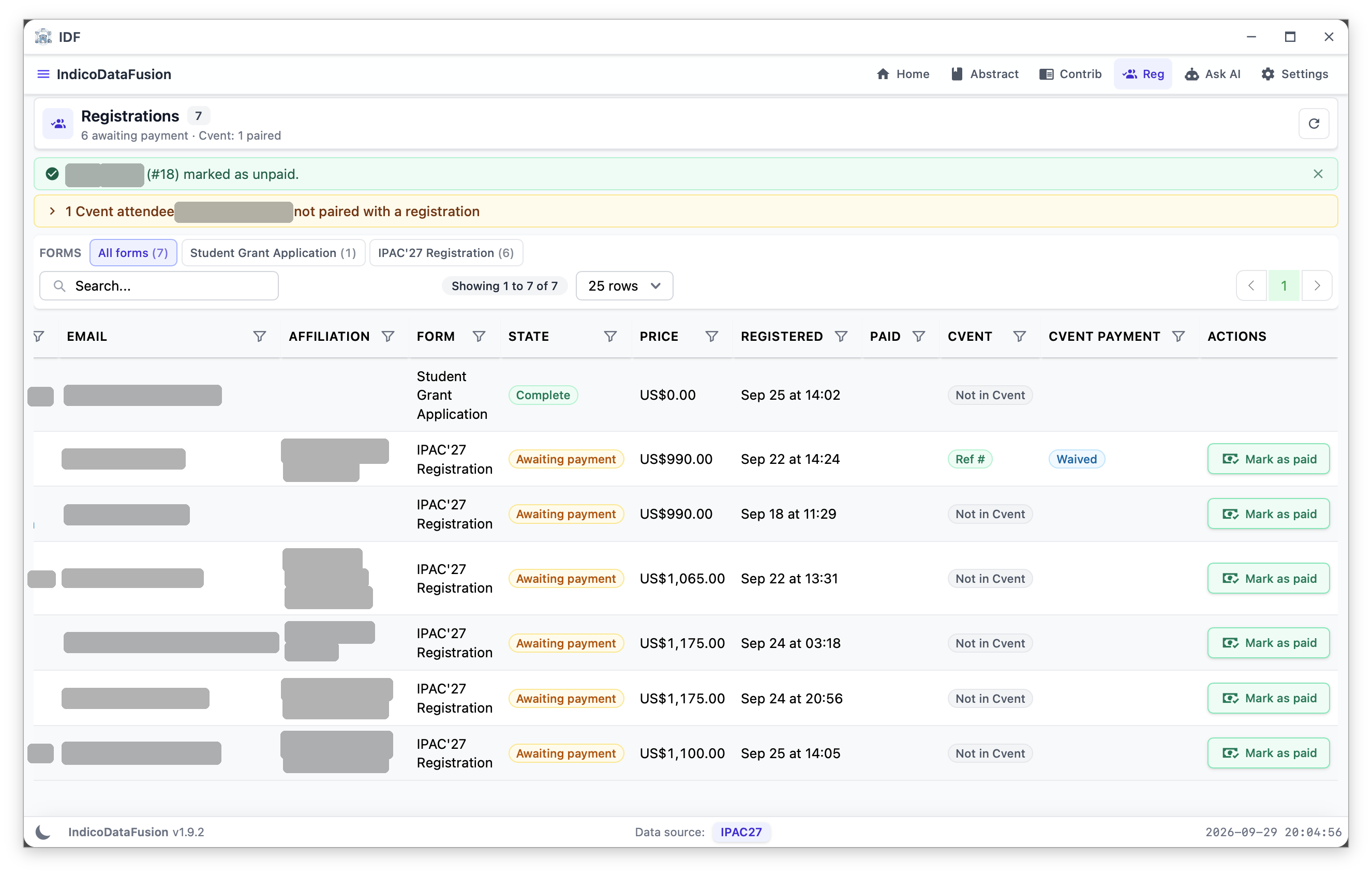
The registration is back to Awaiting payment.
IDF · Registrations & Cvent · Click a screenshot to enlarge it
20